What it is
Graphical frontend for Litho — same safety model, simpler workflow.
Lithographer runs as a normal user app. Listing devices and checking safety rules happen in-process;
actual flash and clone are done by a bundled litho helper after you approve elevation
(polkit on Linux, UAC on Windows).
Powered by the Litho engine — the same CLI and library stack, wrapped in a desktop UI for picking devices, choosing images, watching progress, and cancelling mid-run.
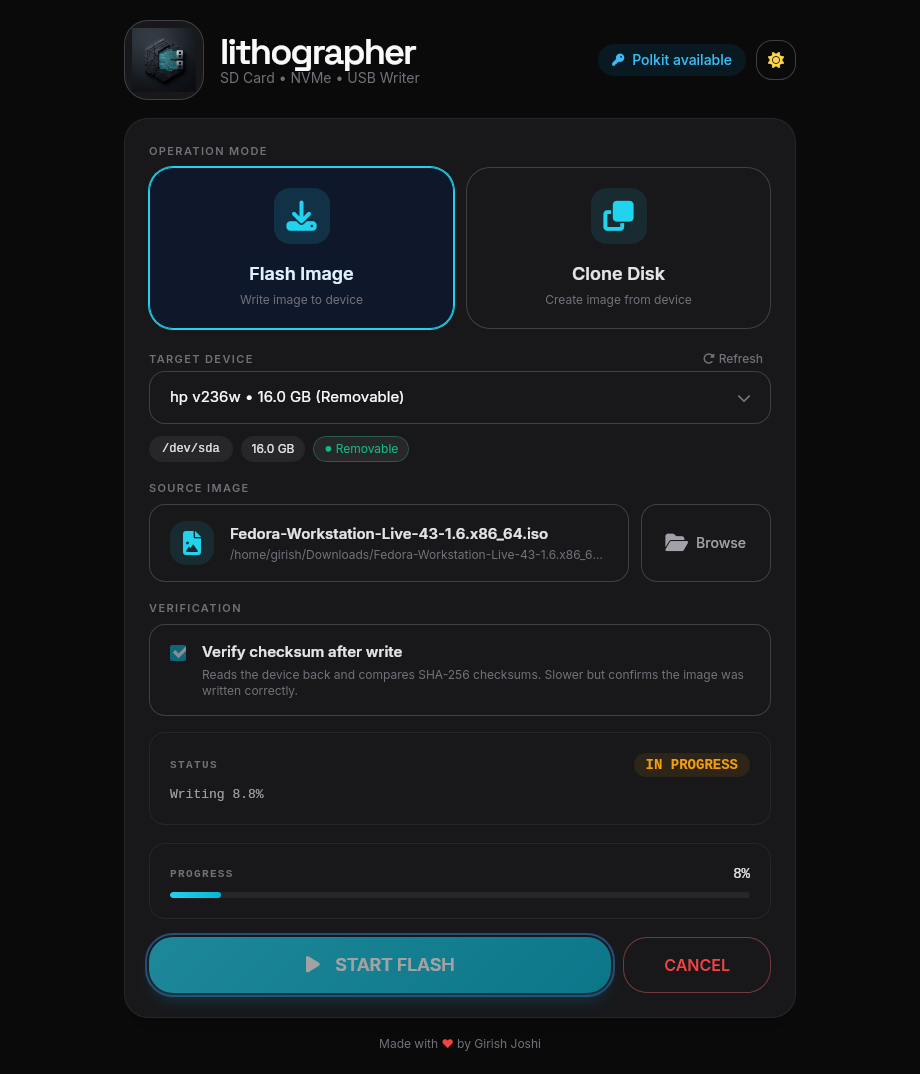
Screenshot
Main window — flash in progress with verify enabled.
What you can do
Flash
Write .img, .iso, or .img.xz images onto a USB drive or whole disk.
Clone
Copy a whole disk to an image file for backup or redistribution.
Simple pickers
Choose devices and files from a clean UI. Removable drives are listed first.
Verify after flash
Optional checksum verify so you know the write completed correctly.
Cancel anytime
Stop a running operation cooperatively between I/O blocks.
Light & dark
Theme preference is saved so the app matches your environment.
Platforms
| OS | Status |
|---|---|
| Linux | Full support (AppImage, .deb, .rpm) |
| Windows | Full support (MSI / NSIS) |
| macOS | Not fully supported yet |
Install
Use a release build for day-to-day flashing, or build from source for development.
Linux — run the AppImage or install the .deb / .rpm from release assets.
./lithographer_*_amd64.AppImage.deb package (system WebKitGTK).
Windows — run the MSI or NSIS installer from the release, then start Lithographer from the Start menu.
From source — you need Tauri 2 prerequisites,
a checkout of litho next to lithographer (same parent directory),
and polkit (pkexec) on Linux or WebView2 + UAC on Windows.
#   …/litho
#   …/lithographer

cd lithographer
npm install
npm run tauri:build

# Development (hot reload)
npm run tauri:dev
How to use
Always double-check the device name. Wrong device means permanent data loss.
- Choose Flash or Clone.
- Select a storage device (removable drives are listed first).
- Choose the image file (flash) or output path (clone).
- Optionally enable verify for flash.
- Press Start and approve the elevation prompt if asked.
- Watch progress; use Cancel if you need to stop.
Elevation
Flash and clone need elevated privileges. Listing devices does not.
| Platform | What happens |
|---|---|
| Linux | System password dialog (pkexec / polkit) when flash or clone starts |
| Windows | UAC prompt; the app restarts elevated so progress still shows correctly |
You can also start the whole app elevated (sudo on Linux, “Run as administrator” on Windows)
so per-operation prompts are not needed.
# Default: polkit / pkexec
./lithographer_*.AppImage

# Fallback if polkit is broken: sudo askpass
LITHOGRAPHER_ELEVATION=sudo ./lithographer_*.AppImage
Safety
- Wrong device = permanent data loss. Read the device name carefully.
- Prefer USB / removable media as flash targets.
- Fixed (internal) disks require an extra confirmation.
- Litho refuses the system disk and will unmount/dismount volumes on the target only after you confirm.
Troubleshooting
| Issue | What to try |
|---|---|
| No devices listed | Re-plug the USB drive; refresh; on Linux check lsblk |
| Elevation cancelled | Approve the password/UAC dialog, or run the app elevated |
| Flash fails mid-way | Close File Explorer / other disk tools; unmount the drive; retry |
| AppImage blank on Wayland | Try the .deb package or an X11 session |
| Progress stuck after cancel | Wait for the current block to finish; cancel is cooperative |
Helper logs live under ~/.cache/litho/ on Linux and
%LOCALAPPDATA%\litho\ on Windows.