What it is
A focused tool for imaging removable media — not a general disk utility.
Litho ships a CLI (litho), an interactive terminal UI (litho-tui),
and a Rust library used by the Lithographer desktop app.
Supported for full use on Linux and Windows. macOS is experimental. Querying devices does not require elevation; flash and clone need root (Linux) or Administrator (Windows).
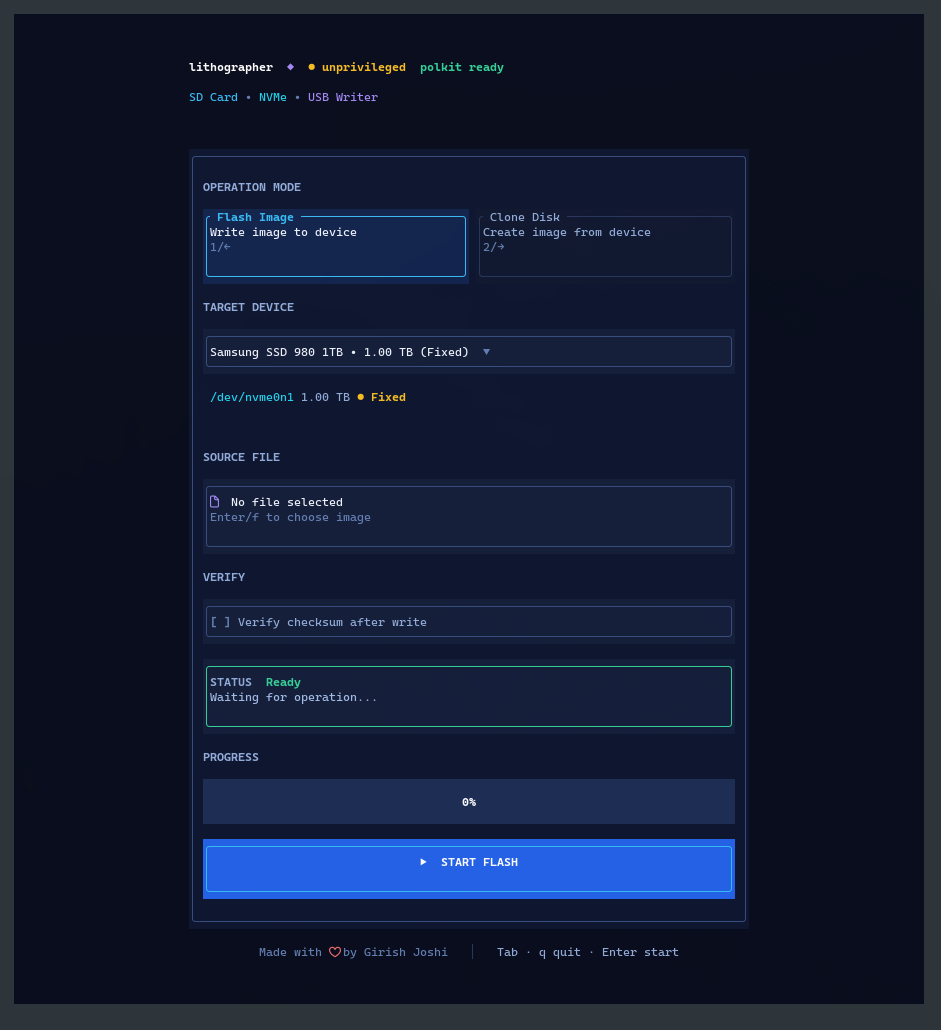
Screenshot
Interactive TUI in action.
Features
Flash
Write .img, .iso, or .img.xz images to block devices with progress output and optional SHA-256 verify.
Clone
Copy a device back to an image file for backups or redistribution.
CLI + TUI
Scriptable litho for automation, and litho-tui for interactive device and file pickers.
Safety guards
Refuses the system disk, partitions (whole disk only), and busy volumes until you confirm unmount or dismount.
Library
Rust library powering Lithographer and any app that needs the same flash/clone pipeline.
Simulated I/O by default
Default builds use simulation mode so disks are not written until you enable real-io.
Install
Enable real-io for actual flash and clone. Without it, builds are simulation-only.
Crate name on crates.io: liblitho (binaries are still named litho and litho-tui).
cargo install liblitho --no-default-features --features real-io

sudo litho --help
litho-tui --helpcargo build --release --no-default-features --features real-io \
--bin litho --bin litho-tui
# CLI: target/release/litho
# TUI: target/release/litho-tuilitho helper for flash and clone.
Quick start — CLI
Always double-check the device path. Flashing the wrong disk destroys data.
# List devices (no root needed)
litho query

# Flash (Linux)
sudo litho flash --file /path/to/image.img --device /dev/sdX

# Compressed image + verify
sudo litho flash -f image.img.xz -d /dev/sdX --verify

# Clone a device to a file
sudo litho clone --device /dev/sdX --file /path/to/backup.img| Option | Meaning |
|---|---|
-f, --file |
Image path (flash source or clone output) |
-d, --device |
Block device (e.g. /dev/sdb, \\.\PhysicalDrive1) |
-b, --block-size |
I/O buffer size in bytes (default 4096) |
--verify |
After flash, read back and compare SHA-256 |
--dry-run |
Validate only; do not write |
--yes |
Confirm automatic volume unmount / dismount |
Quick start — TUI
Terminal UI needs at least 60×24 characters.
sudo litho-tui
# or unprivileged — you will be prompted to elevate (pkexec / UAC)
litho-tui

litho-tui --mode flash --device /dev/sdb --image ./image.img| Key | Action |
|---|---|
Tab |
Move between sections |
1 / 2 |
Flash / Clone mode |
d / f |
Device / file picker |
r |
Refresh devices |
Space |
Toggle verify (flash) |
Enter |
Activate focused control / start |
c / Esc |
Cancel running operation |
q |
Quit |
Safety
- Prefer removable USB/SD media as the flash target when possible.
- Litho refuses the system disk, partitions (use the whole disk), and busy/mounted volumes until you confirm unmount/dismount.
- Cancel stops between I/O blocks; a cancelled flash may leave a partially written device.